


Chrome robotic arm working over a circuit board in a blue-lit electronics lab

Support & Licensing

Software Support and Licensing for Altair and Siemens

Altair Units, Altair One, Siemens NX licenses and license servers, installs and error messages: get answers from application engineers who use the same tools every day.

Support From
Application Engineers
Licensing
Altair UnitsNX
Support From
Application Engineers
Hours
Mon–Fri8–5 MT

Everything You Need

Get Started and Stay Supported

Licensing options, installation fixes, technical support and programs that help you succeed with Altair and Siemens software, in one place.

Licensing Questions

How Altair Units and Siemens NX licenses work, and which model fits your team.

Licensing Guide

Installation Help

NX install steps, Altair error fixes and Monarch troubleshooting.

Troubleshooting

Technical Support

Direct help from application engineers on setup, workflows and errors.

Open a Request

Startup Programs

Altair Startup Program, ASAP and the American-Made Network.

See Programs

Altair Licensing

How Altair Units Licensing Works

Instead of buying individual applications, your organization buys a pool of Altair Units. Those Units unlock the Altair simulation, multiphysics and data analytics portfolio, and engineers share them to run whatever tool the problem needs.

Each application draws Units while it runs and returns them when it closes. Size the pool to peak concurrent use, not to the number of products, and add specialized packages such as Industrial Design and Concept Engineering or Multiphysics and Mechatronics suites only where you need them. Licenses can be Altair-hosted and managed in Altair One, or run on-premise with Altair License Manager.

  1. 01
    Buy a PoolSized to how many engineers run tools at once.
  2. 02
    Draw on LaunchAny Altair application checks out Units from the pool.
  3. 03
    Return on CloseUnits go back to the pool for the next engineer.
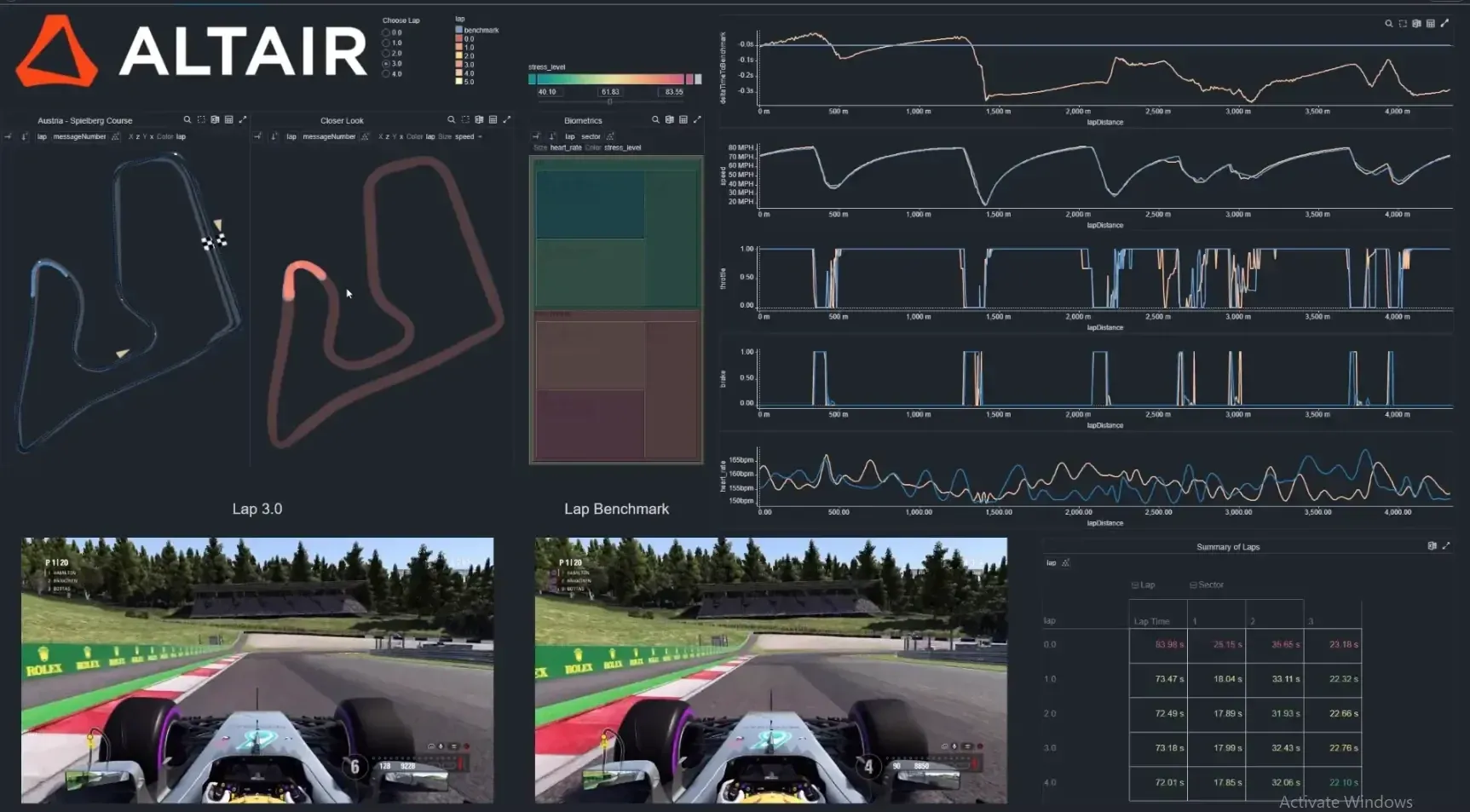
Altair Panopticon dashboard with race lap telemetry and track mapsAltair Units · Shared Pool
Usage reviewUnits Draw · Concurrency
Traditional Licensing vs Altair Units
ConsiderationTraditional LicensingAltair Units
AccessOne license per applicationOne pool of Units unlocks the Altair portfolio
SharingSeats tied to named users or machinesUnits shared across the team and drawn on demand
Adding ToolsBuy each new product separatelyRun additional applications from the same pool
Partner SoftwareSeparate vendors and contractsAdvanced Partner Alliance applications on the same Units
DeploymentVaries by vendorAltair-hosted in Altair One or on-premise Altair License Manager
SupportMultiple vendors and support channelsOne vendor for licensing and support, via TrueInsight

Working offline or traveling? Borrow a license for up to 14 days from the Borrowing tab of the Altair License Utility, then return it early or let it expire back to the pool.

Altair One

Altair One Account and License Management

Altair One is the single portal for Altair products: download software, manage users and licenses, and reach help, training and scalable cloud computing from desktops, laptops and mobile devices.

  • Add and Remove Users and Restrict Them to Specific Tools (Altair-Hosted Licenses)
  • Check Units Draw, Usage Logs, Authorized Machines and IP Addresses
  • Generate Auth Codes and Download Installers for Every Altair Tool
  • Access the Learning Center, Online Help, Training and Altair Support

New to the portal? Read Understanding the Altair One Marketplace or visit the Altair One Marketplace.

Plexus network lines on a dark navy backgroundAltair One · Cloud Portal

Licensing a Machine With an Auth Code

The fastest fix for a fresh install or a machine that can no longer see its license.

Full Auth Code Walkthrough

Log In to Altair One

Open the account menu in the upper-right corner and choose Profile under Manage Account.

Open Authorized Machines

An empty list is normal on a new account. Don’t delete entries without checking first.

Generate an Auth Code

The code is valid for 15 minutes, so have the license utility open first.

Paste It Into the Utility

Use the Altair License Utility; RapidMiner Monarch uses its own licensing tool.

Siemens Licensing

Siemens NX License Types and License Servers

A Siemens NX license is defined by what you can run (the NX bundle and add-ons), where it runs (node-locked or floating) and how long you own it (subscription term or perpetual with maintenance, depending on the product and program).

The same licensing model covers Solid Edge, Simcenter and NX CAM, so one well-configured license server can support your whole Siemens environment. Compare bundles on the Siemens NX page or request Siemens NX pricing.

Node-Locked License

Bound to one workstation’s host ID. Simple to run, ideal for a dedicated user or machine.

Floating License

Served from a license server; any networked machine checks out a seat up to the number purchased.

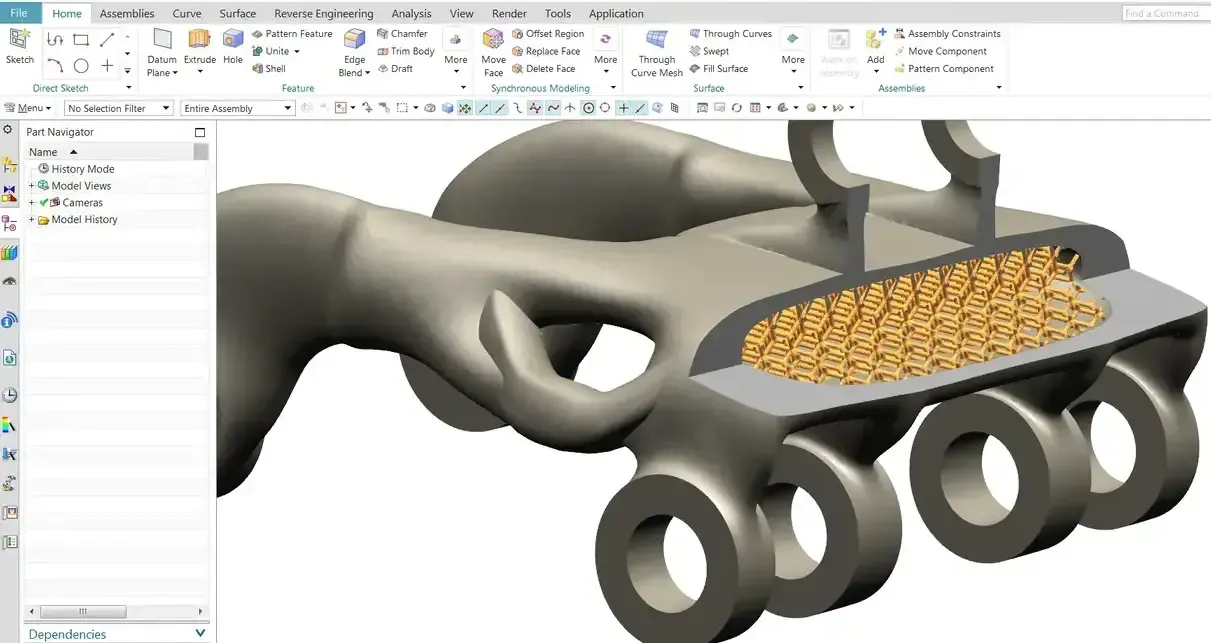
Siemens NX interface showing a bracket part with an internal lattice structureSiemens NX · Floating Seat

What a Siemens License Server Needs

  • A Windows or Linux Machine on Your Network Running the FlexNet-Based Siemens License Server
  • A License File Issued for That Server’s Composite Host ID
  • An Open License Port (Typically 28000) and Vendor Daemon Port Through the Firewall
  • Clients Pointed at port@hostname, Set During Install or With the SPLM_LICENSE_SERVER Variable
Get Help Setting Up a License Server

Installation & Troubleshooting

Installation and Troubleshooting Help

Step-by-step NX installation, fixes for the Altair errors we see most and a video library for setup, authentication and usage reporting.

NX Installation Guide (PDF)

Siemens NX · Windows x64

Installing Siemens NX

Platform
Windows x64
Disk Space
40 GB Free
Install Time
10–50 Min

Make sure at least 40 GB of unallocated disk space is free before you start; the installer cannot be safely paused or restarted. Not sure of your license server details? Email support@trueinsight.io before step 5.

Download the Guide
  1. Download the NX InstallerGet the SiemensNX-XXXX_wntx64.zip package from the Siemens support portal.
  2. Extract and Run Launch.exeUnzip to a local folder, then run the launcher.
  3. Start the InstallerIn the launcher, select Install Designcenter NX.
  4. Work Through SetupClick Next through Welcome, Custom Setup, Language Selection and Ready to Install.
  5. Enter Your LicenseBrowse to your license file or enter the server as port@hostname.
  6. Approve the UAC PromptClick Yes so the installer can make system changes.
  7. Let It FinishDon’t cancel or restart during the 10–50 minute install; click Finish when done.

Common Altair Installation and License Errors

Out of Country Error

What It MeansThe tool is being accessed from outside the licensed region, typically the US.

How to Fix ItAdjust the machine time zone, reconnect to the US network or VPN, or review server routing settings.

Invalid Config File Error

What It MeansThe license configuration is invalid or expired, so the Altair license cannot authenticate.

How to Fix ItReauthenticate in the Altair License Utility: log in again or generate a new auth code from Altair One.

Not Enough Features Available

What It MeansThe tool needs more Altair Units than are currently free in your pool.

How to Fix ItCheck whether colleagues are drawing Units, close unused sessions, or confirm your pool covers that application.

Tool Suddenly Stopped Working

What It MeansA previously working tool fails after system changes, outdated drivers or permission issues.

How to Fix ItUpdate graphics drivers, run the tool as Administrator and reauthenticate the license if needed.

Alternate License Authorization

What It MeansYou can authorize a machine with an auth code instead of the standard login.

How to Fix ItIn Altair One open Profile, Authorized Machines, Generate Auth Code, then paste it into the license utility.

Altair Monarch Issues

COM Setup“Class not registered” errors: re-register MonarchEngine.dll with regsvr32 from an administrator prompt.

Version MigrationModels that break after an upgrade: re-validate traps, fields and export paths.

Corrupted OutputBlank or misaligned data: re-anchor traps, correct field types and check locale settings.

Monarch Floating Traps Guide

Video — Borrowing or checking out an Altair licenseYouTube

Purple halftone dot wave curving across a deep blue background

Support That Knows the Tools

Real Engineers on the Other End of Every Request

From installation and licensing assistance to advanced technical guidance, our team works alongside your engineers to keep implementations moving and workflows scaling.

Technical Support

Technical Support From Application Engineers

Work with experienced engineers to solve issues, optimize workflows and get the most from your Altair and Siemens investment.

  • Installation and Licensing AssistanceInstalls, license servers, auth codes, Units sizing and user management.
  • Onboarding and TrainingFirst models, workflow configuration and custom training.
  • Advanced Technical GuidanceMeshing strategy, solver settings, convergence and results interpretation.

Include With Your Request

  • Product and Version
  • Operating System
  • License Type and Server Address
  • Exact Error Text or a Screenshot
support@trueinsight.io (866) 224-2114 Mon–Fri, 8:00 a.m.–5:00 p.m. MT

Open a Support Request

Tell us the product, version and what you’re seeing. An application engineer will follow up.

TrueInsight uses the information you provide to contact you about our products and services. You may unsubscribe at any time. See our Privacy Policy.

Startup & Academic Programs

Startup and Academic Programs

Programs that put enterprise-grade simulation within reach of startups, clean energy innovators and research teams, without the cost of traditional licenses.

Check Your Eligibility
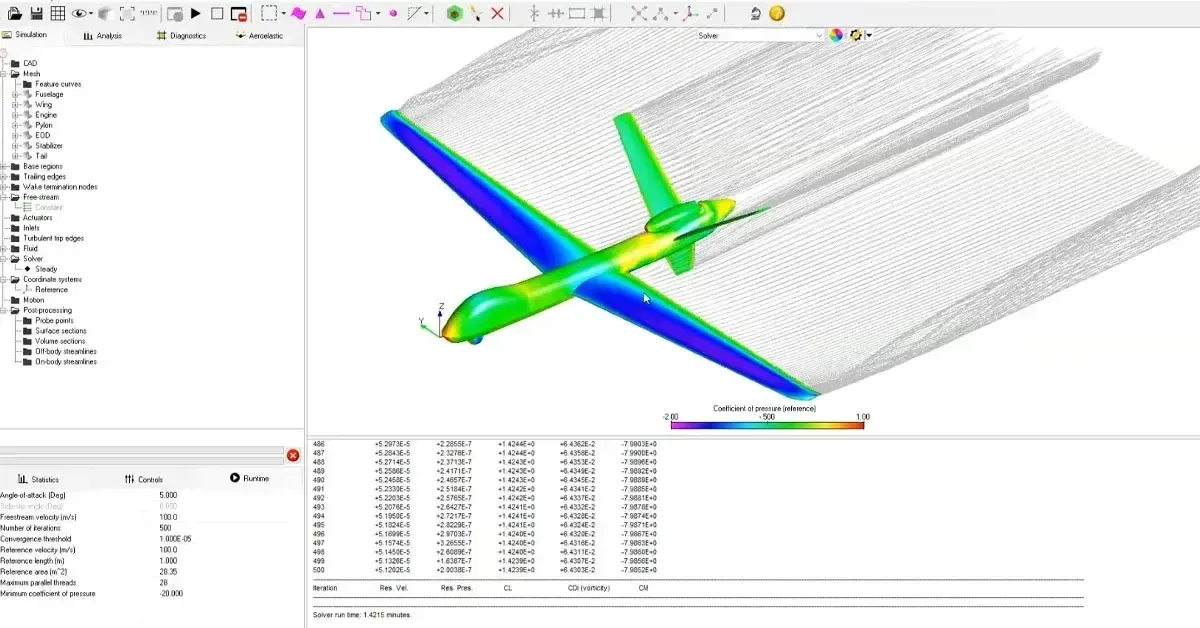
UAV surface pressure distribution and wake in Altair FlightStream

Altair

Altair Startup Program

Early-stage companies get Altair’s engineering platform for simulation, electronics and PCB validation, data analytics and AI, typically as a three-year Smart Product Development Package.

  • Company Less Than Four Years Old
  • Annual Revenue of $5 Million or Less
  • External Investment of $25 Million or Less

Apply for the Startup Program
Satellite orbiting above Earth with an antenna beam

Aerospace

Aerospace Startup Acceleration Program

ASAP gives aerospace startups HyperWorks, SimLab, SimSolid, Inspire, Feko, PollEx, PSIM and the Altair data analytics suite at startup-friendly pricing on flexible Altair Units.

  • Next-Generation Aircraft, Spacecraft, Drones and UAM
  • Electric Propulsion, Hypersonics and Sustainable Aviation
  • Advanced Materials, Aerodynamics and Airframes
Apply for ASAP
Steel lattice transmission tower against a pink evening sky

Clean Energy

The American-Made Network

A U.S. Department of Energy initiative whose American-Made Challenges fund clean energy innovators. We help teams validate their technology with simulation to strengthen a submission.

  • Eligibility Varies by Prize
  • Multiphysics Validation Before Prototyping
  • Tools, Onboarding and Expert Guidance
Strengthen Your Submission

Universities, Students and Research Labs

Altair and Siemens both run academic programs for teaching and research. Tell us about your lab, course or student team and we’ll point you to the right option, then help with installation and licensing once you’re approved.

Ask About Academic Licensing

FAQ

Support and Licensing FAQ

What Is a License Server?

A license server is a computer on your network that runs license-management software and holds your organization’s floating licenses. When an engineer starts an application, the client requests a license from the server; when the application closes, the license returns to the pool for someone else.

Siemens NX, Solid Edge and Simcenter use the FlexNet-based Siemens License Server, and on-premise Altair Units run on Altair License Manager. Clients find the server with a port@hostname address.

How Does Altair Units Licensing Work?

Your organization buys a pool of Altair Units instead of individual product licenses. Each running application draws Units from the pool and returns them when it closes, so engineers can use any tool in the portfolio as long as Units are available. See how Altair Units licensing works.

What Licensing Options Are Available for Altair Software?

Altair software is licensed on subscription with Altair Units, a token-style model that gives teams shared access to multiple tools based on usage. Licenses can be Altair-hosted and managed in Altair One, or served on-premise with Altair License Manager. Specialized packages and startup programs are also available.

What Software Is Included With Altair Units?

Altair Units provide access to a wide range of Altair technologies, including structural and multiphysics simulation, electromagnetics, optimization, manufacturing simulation, data analytics and high-performance computing tools, plus Advanced Partner Alliance (formerly Altair Partner Alliance) applications.

What Is Altair One and How Does It Manage Licenses?

Altair One is Altair’s cloud portal for downloading software, managing users and licenses, viewing Units usage and authorized machines, generating auth codes and reaching training and online help. Read Understanding the Altair One Marketplace.

How Do I Borrow an Altair License?

Open the Altair License Utility, go to the Borrowing tab, choose a duration (up to 14 days), click Borrow, launch the applications you need, then end borrow mode. The borrowed license stays on your machine for offline work until the period expires or you return it early.

Can I Authorize My Altair License Without Logging In?

Yes. Generate an auth code from your Altair One profile under Authorized Machines and enter it in the Altair License Utility. Codes expire within minutes, so open the utility first. Our auth code licensing walkthrough covers each step, including Monarch.

Why Am I Getting an “Out of Country” Error?

This happens when the tool is accessed from outside the allowed region, typically the US. Adjust your time zone, network location or VPN, or review server routing settings.

What Does “Not Enough Features Available” Mean?

Your license pool does not have enough Altair Units free for the tool you launched. Other users may be drawing Units, or the application needs more Units than your subscription includes. Close idle sessions or contact us to review sizing.

How Do I Get Support for Siemens NX?

Email support@trueinsight.io, call (866) 224-2114 or open a support request. Include your NX version, operating system, license type and server address, and the exact error message. Our application engineers help with installation, licensing, CAD and CAM workflows.

What Should I Do If I Have Installation Issues?

Start with the basics: free disk space, administrator rights, graphics drivers and the correct license file or port@hostname address. Follow our NX installation guide (PDF) or the Altair fixes on this page. If the issue persists, TrueInsight support will work through it with you.

Can TrueInsight Help With License Setup?

Yes. We help you select, configure and manage Altair and Siemens licenses, from sizing an Altair Units pool and adding users in Altair One to installing a Siemens License Server and pointing NX clients at it.

How Can I Get Support for Altair Products?

Through an authorized partner like TrueInsight, which provides technical assistance, onboarding, training and troubleshooting for Altair software, now part of Siemens.

Is Training Available for Altair Solutions?

Yes. TrueInsight provides training sessions and onboarding to help teams adopt Altair and Siemens tools. See our Altair and Siemens NX training courses.

Who Is Eligible for the Altair Startup Program?

Startups less than four years old, with annual revenue of $5 million or less and external investment of $25 million or less, may qualify. Aerospace startups can also apply to the Aerospace Startup Acceleration Program (ASAP).

Need Help?

Get Expert Support and Licensing Guidance

Contact TrueInsight for help with installs, license servers, Altair Units sizing or any Altair or Siemens solution.

  • Authorized Siemens & Altair Partner
  • Expert Engineering Support
  • Licensing Sized to Your Team