Understanding the Altair One Marketplace
The Altair One Marketplace is a fantastic resource for Altair Users or prospective users. In this post we explore some of the overt and hidden benefits.

Simply put, the Altair One Marketplace is the one-stop shop for all Altair products and account management. Altair offers many products supporting a wide variety of industries and customers ranging from small-scale startups & educational institutions to international aerospace companies.
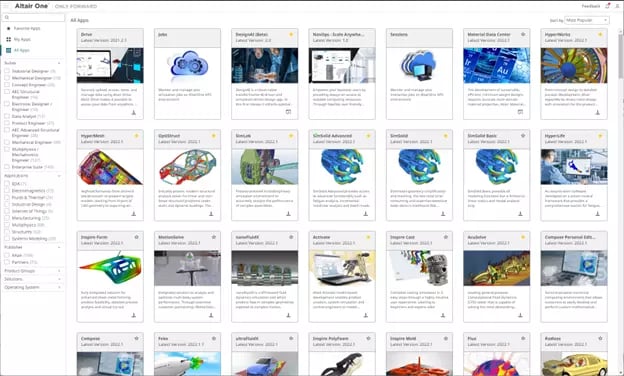
The Altair One Marketplace was created to provide a simple access point for all the different tools that Altair offers like HyperWorks, Feko, OptiStruct and more. Through a single portal, users can filter tools by application, solutions, product groups etc., and manage their account. Image 1 shows the Altair One Marketplace home screen.
Image 1: Altair One Marketplace – Home Screen
Filter and Search Tools:
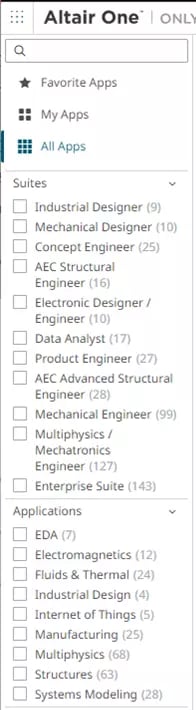
The first thing to notice when visiting the Marketplace, is to check out the suites and other filtering options in the left corner of the screen (See Image 2). Suites provide a combination of tools that Altair offers based on various job functions or a potential end user. Users can also search for tools from the search bar above and favorite their tools for easy access to commonly used applications.
Image 2: Filter tools based on Suites or Applications
Altair Account Management (Altair Hosted License Only):
Users can use the Altair One website to manage their account as well. They can add/remove users (for Altair Hosted Licenses), check the license unit draw, connect with Altair Technical Support, and browse resources for online help and training. Image 3 shows the user management tab.
Image 3: User Management Portal
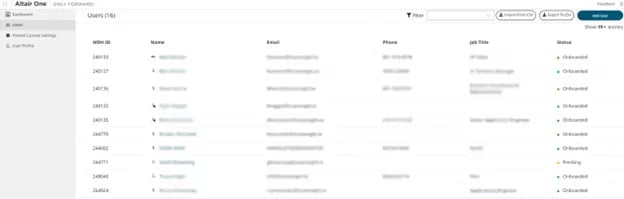
The icons next to the username corresponds to the account permissions, Key symbol indicates that the users are the Owner(s) of the account, the shield symbol indicates that the user is an Administrator. Account permissions are explored in more depth in a previous blog post: Making Sense of the User Roles on Altair One.
For Administrator roles, checking License Usage, Usage Logs, Authorized Machines and IP Addresses is simple. Image 4 below shows a screenshot of the different tabs available for Administrators in for Hosted Licenses. As shown, Administrators can also restrict users to specific tools or applications.

Image 4: Screenshot of Hosted License Settings available for Administrators
Altair Resources found on Altair One:
Another helpful feature of the Altair One Marketplace is the access to additional resources available from Altair. On the left-hand side of the Marketplace landing screen, users can find the menu in the upper left hand corner, marked in Image 5 below. A flyout menu will appear to show more options. At the bottom of that flyout menu, a “Resources” section is shown. From here, you can access tools to enhance your Altair experience. Image 5: Screenshot of flyout menu from Altair One Marketplace
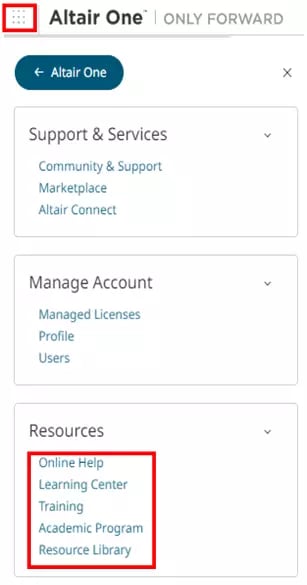
Online Help: An online help portal with important technical information for all Altair solutions
Learning Center: Access to the Altair Community, which connects users in forums, documentation, and Installation Guides.
Training: Users gain access to multiple training options for all Altair solutions from Self-Paced, Instructor-Led or Recorded Classes.
Academic: Learn more about resources available to students and educators.
Resource Library: A collection of eGuides, Brochures, Webinar Recordings and Technical Presentations.
For more information, please contact [email protected]