Step-by-Step Walkthrough: Using Altair PhysicsAI
In this post we walk through how to set up a simple study using Altair PhysicsAI, an advanced AI driven simulation technology aimed at reducing time and workload.

On This PageWhy Use Altair PhysicsAI?
In a previous post, we looked at the AI-based tools available to Altair HyperMesh users, which included Altair romAI, shapeAI, DesignAI and PhysicsAI. Altair PhysicsAI is an advanced, AI-powered tool designed to enhance and accelerate engineering simulation workflows by leveraging machine learning and data-driven insights. It’s integrated within Altair HyperMesh, allowing engineers to predict complex physical phenomena, optimize designs, and reduce simulation runtime without compromising accuracy.
PhysicsAI uses trained neural networks and reduced-order modeling to approximate simulation results, enabling fast iterations and design exploration. It is particularly effective in scenarios where full-scale simulations are computationally expensive, such as fluid dynamics and structural analysis. With the latest release, 2024.1, PhysicsAI now includes the ability to run modal analysis including out of phase results.
In this post we will walk through a basic example of how to use physicsAI and give some proper definition to some of the terms used in the process.
Why Use Altair PhysicsAI?
Before we jump into the actual tool, I want to just be sure to explain why someone might want to use this tool. physicsAI enhances traditional FEA analysis by:
- Accelerating Computations: AI reduces simulation runtime through predictive algorithms.
- Improving Accuracy: AI refines results using learned patterns from previous simulations.
- Enhanced Insights: AI helps identify complex behaviors, including out-of-phase phenomena for modal results.
Using PhysicsAI
To get started, find the PhysicsAI ribbon in HyperMesh. Select the plus sign above the Project icon to create and name your new project. See image below for reference.

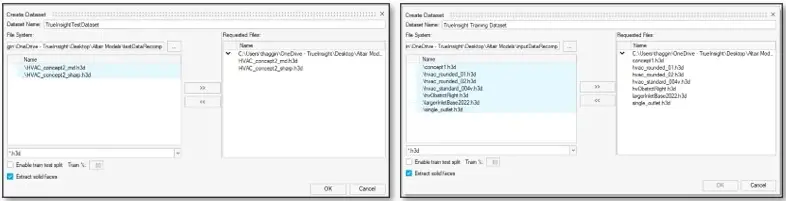
Next, we will create Datasets. The Datasets are results files that PhysicsAI bases its results on. For this example, we will create two datasets: One for Training our Model, and one for Testing our Model. On the same ribbon, find the plus sign above the Datasets Icon,
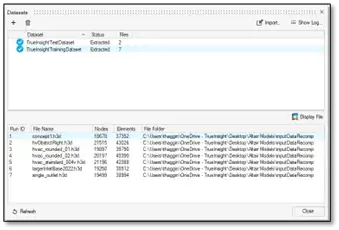
Once this is complete you will see the imported Datasets that are available and the imported files.
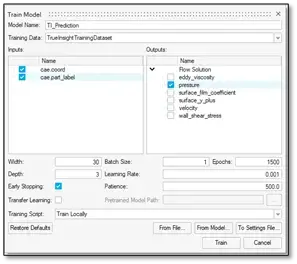
The next step in the process is to train your machine learning model based on the training dataset. Training the model essentially allows the model to learn patterns and relationships with the data, which enables it to make predictions on new data with higher accuracy. Just like with the other steps, you will click the plus sign above the Model Training icon. The dialogue box directs you to name your model and select the appropriate results you want to base it on.
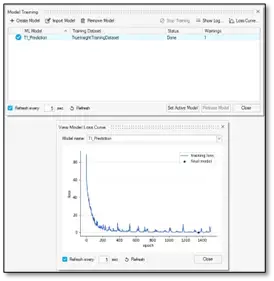
If set up correctly, you should see a dialogue box that shows the progress on your model being trained. As the model is being trained, you have the option to view the progress logs and see the Loss Curve with each pass of the training dataset through an algorithm. Once it completes the training, click Set Active Model.
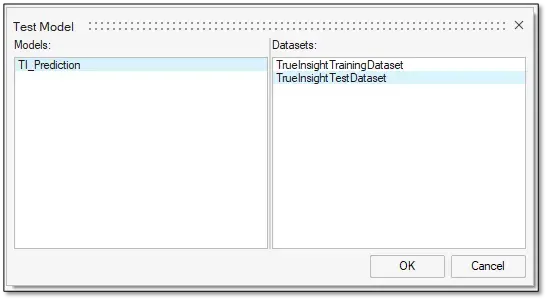
Now we can take our trained model and run it against the Test dataset we imported earlier. To do this, find the plus sign above the Model Testing icon, choose your model and then the dataset you want to run it against and hit OK. This will begin the process of testing your model against that dataset, to which you can see the progress at the bottom of the dialogue box “Testing Model (Model Name) with (Dataset Name)”.
Once that testing is done you can find the results and to visualize these results, click the “Display File” button.
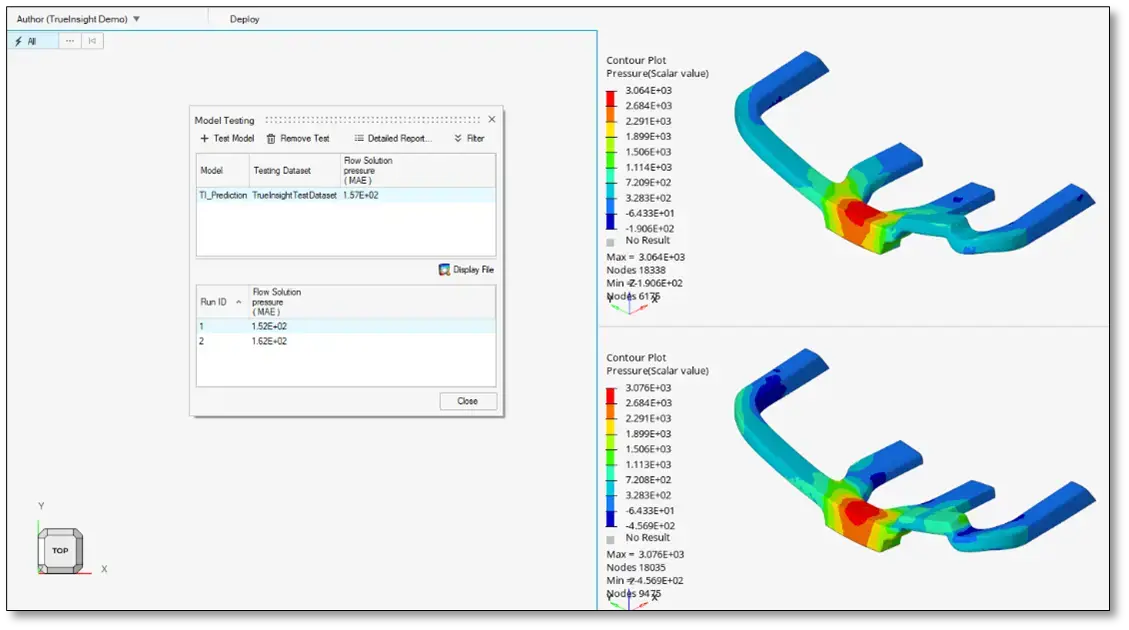
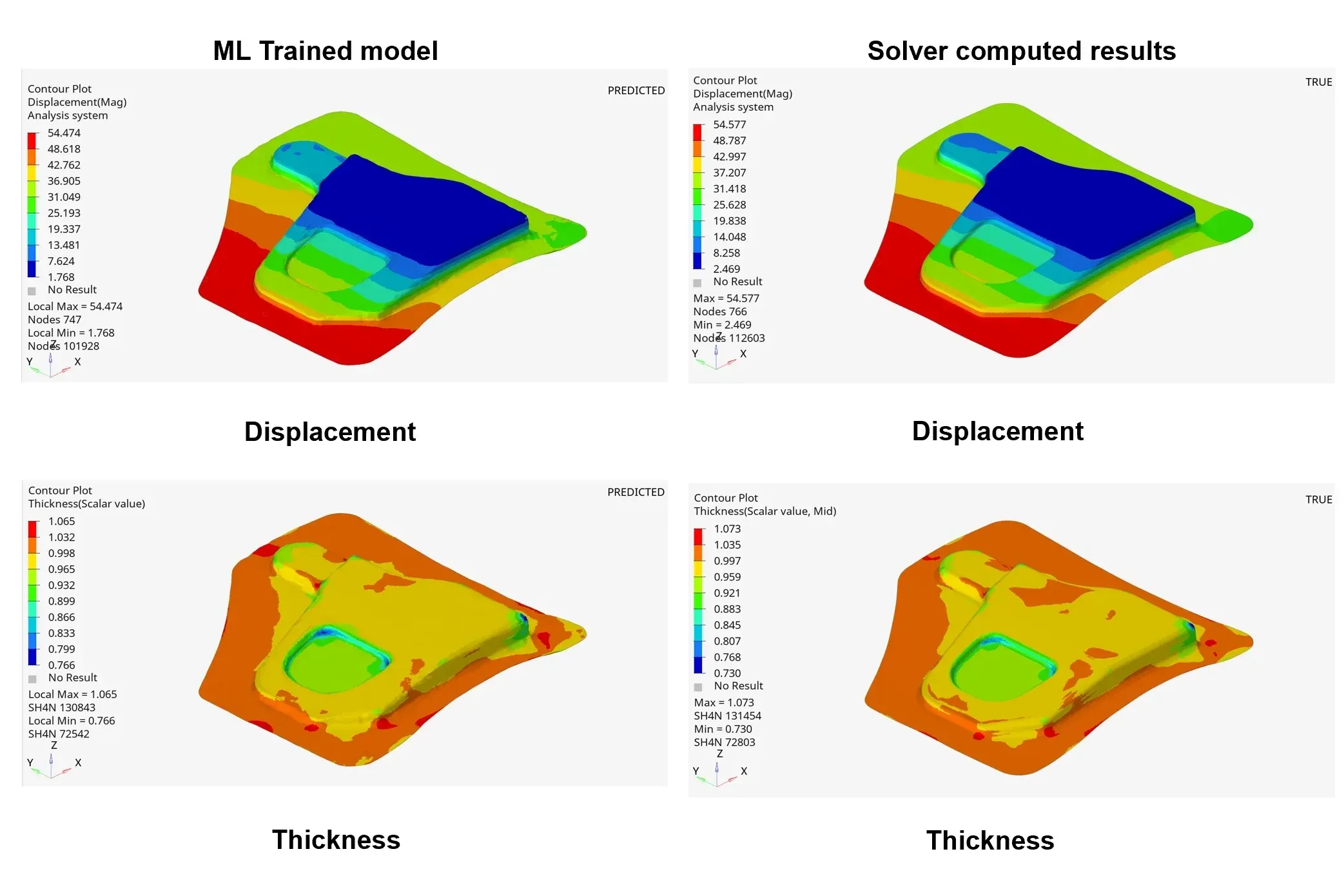
From there you can import your model by dragging and dropping it into the open window to the left of the PhysicsAI model for comparison.
So, while this was a simple example you can see how impactful PhysicsAI can be in that it gave me extremely quick results without the need to mesh, set up and run a simulation study. In addition to that time savings, I can take advantage of the deep learning that these types of tools can execute for a more informed and accurate result in the end. If you want to learn more about PhysicsAI or any other Altair Simulation tools, let us know.